Case studySales3 days
Jakmall.com: Flash Sale Management
A flash sale management system that lets marketing teams schedule, manage, and monitor campaigns without relying on developers.
- Key skills
- Product Management
- Product Requirements Document
User & Market Research- Value Proposition Canvas
- Product Research
User Experience Design- User Flow
- UI/UX Principles
- Tools
 Google Docs
 Figma

How much time do you have?
PRD - Flash Sale Management
1. Context
1.1 Current Scenario
A flash sale is a time-limited promotional program with steep discounts and limited stock, intended to create purchase urgency and increase conversion within a short period. Currently at eCommerce ABC, flash sales are set up manually and on a recurring basis (e.g., daily). Each flash sale shows 6 selected SKUs with discounted prices and limited stock on the customer home page.
The setup process is handled by the Marketing team, who sends an Excel file to the Developer team. The file contains the SKUs, discount percentages, and product quantities. The Developer team then processes the file and inserts the data into the system through a manual process to display the flash sale on the customer side.
1.2 Limitations / Challenges
- Full dependency on developers: The Marketing team cannot set up flash sales on its own, which slows down promotion execution, especially when campaigns need to run quickly.
- No direct visibility: The Marketing team cannot see active or upcoming flash sales without asking the technical team for help, which makes revisions and monitoring slow.
- Prone to human error: The Excel format can be wrong, SKUs can be invalid, and inputs can be confusing without direct validation by the system.
- Not real-time and not flexible enough: Changes to timing or quantity, or replacing SKUs, must go through an inefficient manual technical process that creates a risk of delays.
- Hard to evaluate performance: There is no flash sale history page that makes it easy to analyze the performance of past campaigns.
- Not scalable: If campaign intensity increases, this approach is hard to adapt to different channels or to large SKU volumes without an internal tool.
2. Objectives / Goals
2.1 Business Objectives
- Give the Marketing team full control to set up flash sales on its own, without depending on the Developer team.
- Reduce the preparation and execution time of promotional programs to a matter of minutes.
- Minimize human error through system validation and a user-friendly interface.
- Improve organizational efficiency by reducing the Developer team’s workload and speeding up campaign iterations.
- Improve the consistency of flash sale execution through automated scheduling and a scalable system.
2.2 User Objectives
- Marketing admins can view, create, and manage flash sales on their own through an intuitive interface.
- Can schedule upcoming flash sales precisely and avoid schedule overlaps.
- Can see active flash sales in real time and make sure all SKUs appear as expected.
- Can easily evaluate the performance of past flash sales through the history page and downloadable reports.
- Can adjust the default flash sale settings (duration, number of SKUs) to fit the team’s needs.
3. User Stories & Acceptance Criteria
3.1 Scheduled Flash Sale Management
US01 – Create a Flash Sale
As a Marketing Admin,
I want to select SKUs, set the discount and quantity, and define the schedule
so that I can create flash sales on my own without a developer
Acceptance Criteria:
- Search and filter features are available for SKUs before they are selected
- Validation for discount input (1–100%) and quantity (min 1)
- Validation of schedule conflicts with other flash sale slots, with the option to block or only warn depending on settings
- All actions are recorded in the backend audit log
US02 – Manage Upcoming Flash Sales
As a Marketing Admin,
I want to view and manage upcoming flash sales
so that I can make adjustments before the schedule starts
Acceptance Criteria:
- History is displayed in chronological order (newest on top)
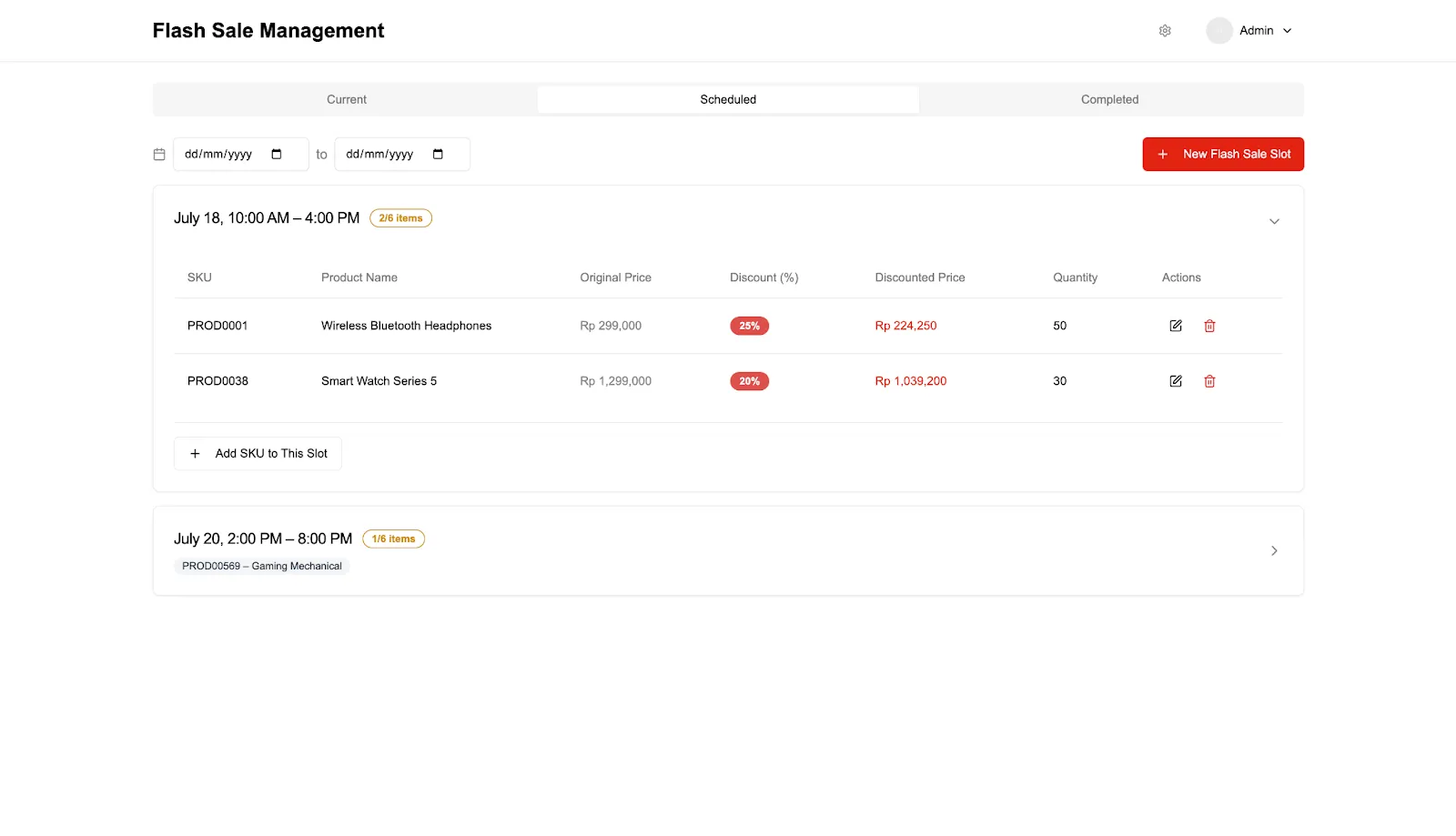
- Slots are displayed in an accordion based on the date filter
- There is an SKU count label per slot (e.g., 3/6 items)
- Can add/remove SKUs and reschedule
- Validation of duplicate SKUs at the same time
- Sorting on all columns: SKU, product, price, discount, discounted price, quantity
- The system shows a warning if the admin tries to move a slot to a time already used by another flash sale. Full blocking or warning only can be configured in Settings.
- All actions are recorded in the backend audit log
US03 – View SKU Summary in the Slot Accordion
As a Marketing Admin,
I want to see a brief SKU summary before opening a slot
so that I can quickly recognize the contents of each flash sale
Acceptance Criteria:
- SKU & product name are displayed as pills in the accordion header
- A maximum of 6 SKUs are displayed, with the rest shown with a “+N more” label
3.2 Current Flash Sale Management
US04 – View the Active Flash Sale
As a Marketing Admin,
I want to see the flash sale that is currently running
so that I can make sure the program is running as planned
Acceptance Criteria:
- A maximum of 6 SKUs per active flash sale by default
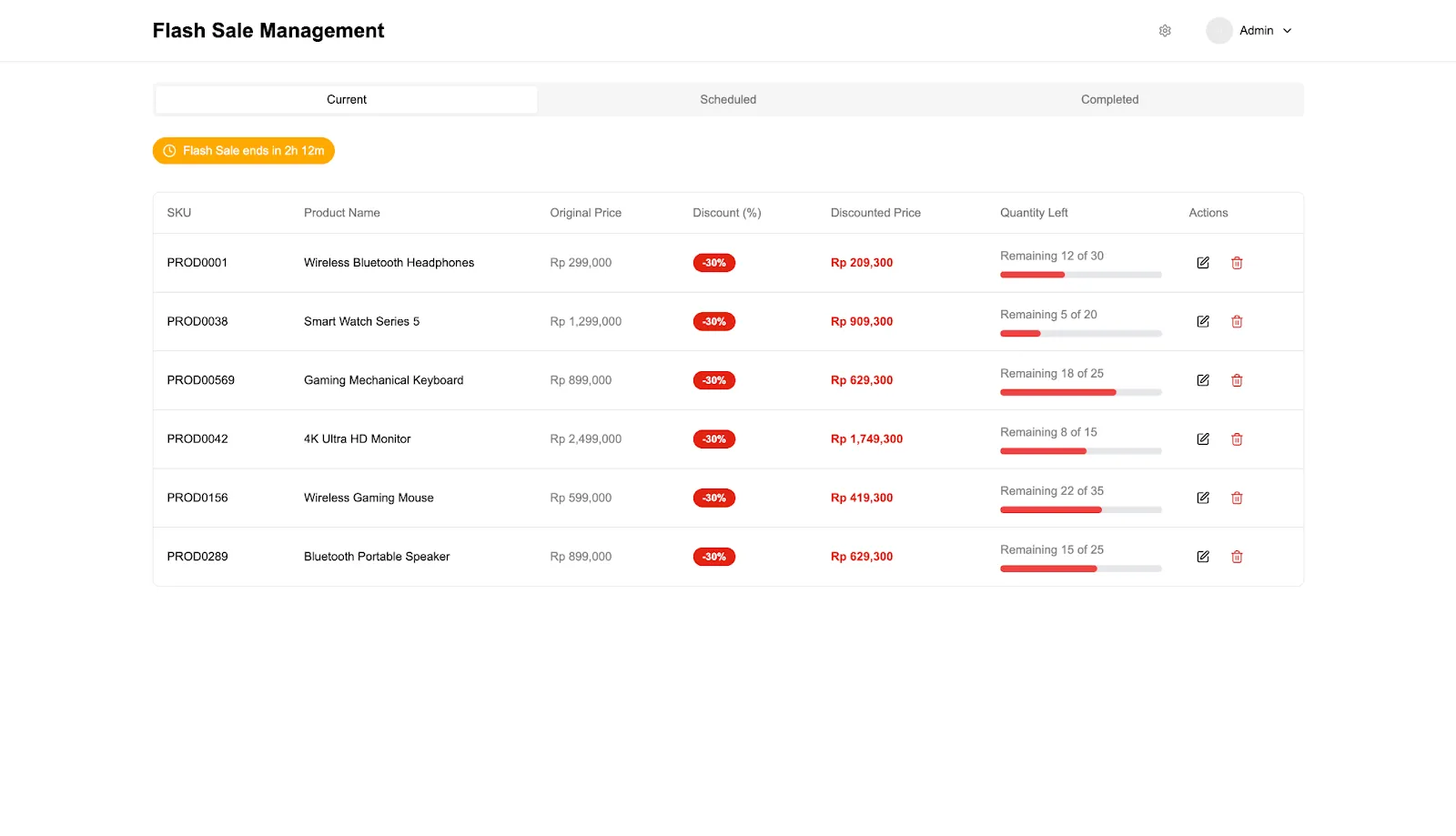
- Display: SKU, name, original price, discount (%), discounted price, remaining stock
- Sorting is available on all columns
- Edit and delete buttons are available per SKU
US05 – Edit or Delete SKUs from the Active Flash Sale
As a Marketing Admin,
I want to be able to make SKU changes while a flash sale is active
so that I can adjust immediately if a mistake occurs
Acceptance Criteria:
- Edit & delete buttons are available on each SKU row
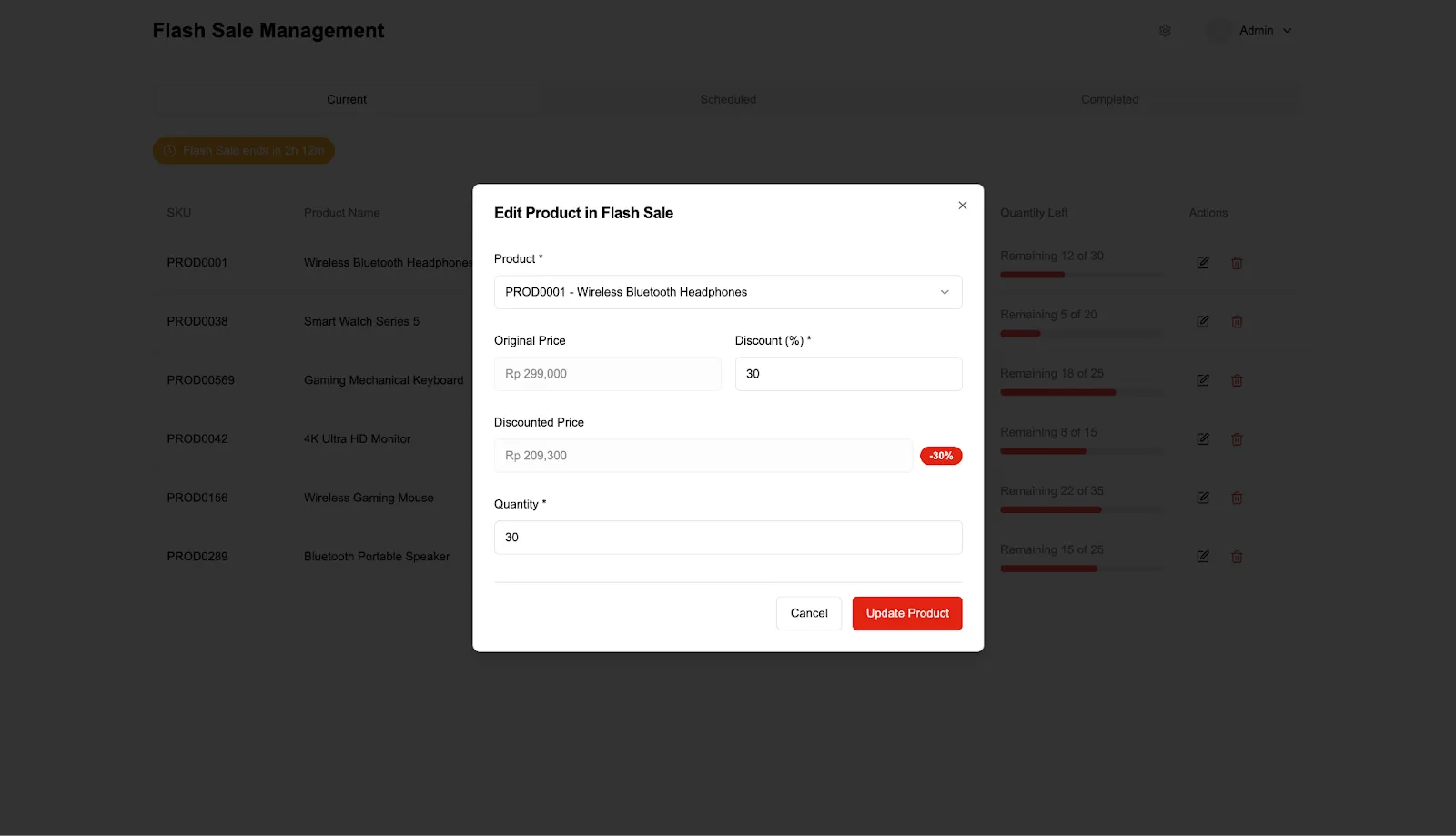
- Edit modal with quantity & discount inputs
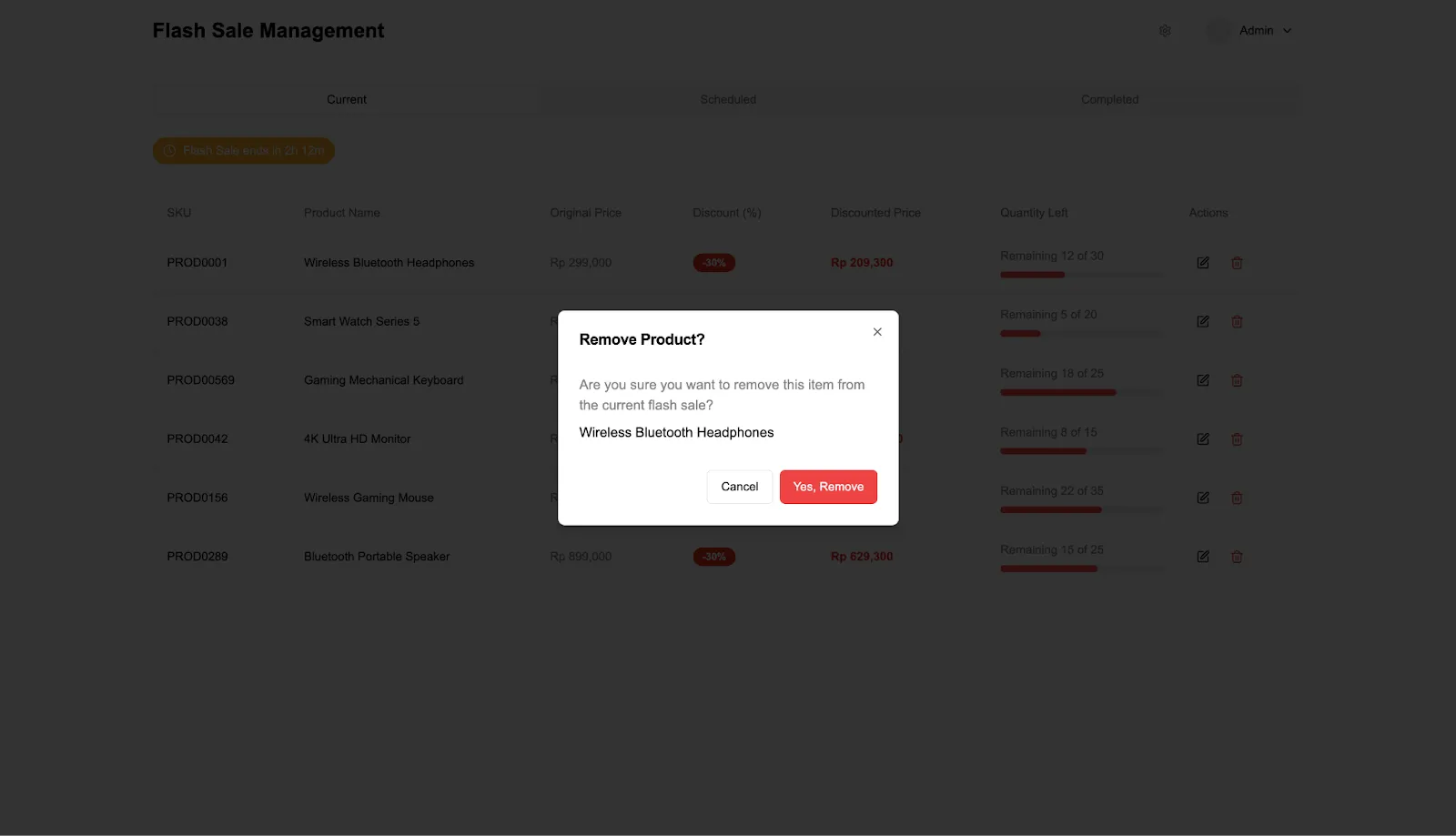
- Confirmation modal for delete
- Changes are recorded in the backend audit log
3.3 Completed Flash Sale History & Reporting
US06 – View Flash Sale History
As a Marketing Admin,
I want to view the flash sale history
so that I can analyze the performance of past promotions
Acceptance Criteria:
- History is displayed in chronological order (newest on top)
- Time filter and SKU search are available
- Columns: SKU, name, original price, discount (%), discounted price, quantity sold per allocated quantity.
- Sorting is available on all columns
US07 – Download Flash Sale Reports
As a Marketing Admin,
I want to download flash sale reports
so that I can compile internal reports
Acceptance Criteria:
- An “Export to CSV/XLSX” button is available in the Completed tab
- The admin can choose a period (start & end date)
- The file includes all relevant columns
3.4 Settings
US08 – Set Up Reminder Notifications
As a Marketing Admin,
I want to get a notification before a flash sale starts
so that I can prepare for monitoring
Acceptance Criteria:
- The admin can choose the reminder time (e.g., 1 hour before)
- Notifications apply only to slots created by that admin
- Shown in the system (and by email if integrated)
US09 – Set Default Flash Sale Preferences
As a Marketing Admin,
I want to set the default duration and the minimum number of SKUs
so that the setup process becomes faster and more consistent
Acceptance Criteria:
- The settings panel saves the default start time and duration
- Can set the minimum SKUs per slot
- A warning label appears when the number of SKUs has not been met
- All settings changes are recorded in the audit log
4. User Flow
-
Login & Navigation
The marketing admin logs in to the internal admin panel and selects the “Flash Sale” menu.
-
View the Active Flash Sale
The first tab shows the currently active flash sale with a maximum of 6 SKUs. The admin can monitor remaining stock and discounted prices, and make changes if needed.
-
Add a New Flash Sale
The admin opens the “Scheduled” tab, then clicks the “Add Flash Sale Slot” button. The admin selects the start time and duration, then adds SKUs one by one.
-
Fill In Product Details
For each SKU added, the admin fills in the discount and quantity. If the count does not yet meet the minimum from Settings, the system shows a warning label (e.g., 2/6 items).
-
Schedule Validation & Preview
If schedules overlap, the system shows a warning or blocks it depending on the settings. A visual preview of the flash sale is shown before saving.
-
Manage Upcoming Schedules
All flash sales that have not started yet are shown as accordions with the date, SKU count, and edit/delete buttons. The admin can adjust the slot details or time.
-
Flash Sale Runs Automatically
When the start time is reached, the system automatically moves the slot to the “Current” tab. No manual action is required.
-
Flash Sale Ends
When the duration ends or stock runs out, the flash sale moves to the “Completed” tab. The “Sold Out” status is assigned automatically if all SKUs sell out before the end time.
-
View & Download History
The admin can view past flash sales and download .CSV/.XLSX reports by time period.
-
System Settings
Through the Settings page, the admin can set the default flash sale duration, the minimum number of SKUs, and the reminder notification interval.
-
Audit & Validation
All actions (create, update, delete) are recorded in the backend log for internal audit purposes.
5. Requirements
5.1 Functional Requirements
- Flash Sale CRUD (Create, Read, Update, Delete)
- Automatic scheduler system based on start and end times
- Validation of discount, quantity, SKU, and time inputs
- SKU search & filter feature when adding SKUs to a flash sale slot
- Validation of duplicate SKUs and overlapping schedules between slots
- Filtering and sorting on all tables (SKU, product name, price, discount, quantity)
- Default values for start time, duration, and number of SKUs per slot settings
- SKU count indicator per slot (e.g., 3/6)
- Reminder notification system before a slot runs
- Feature to export flash sale history to CSV/XLSX
- Audit log recording for all admin actions
5.2 Non-Functional Requirements
5.2.1 Validation Rules
- Discount must be between 1% – 100%
- Quantity cannot be 0 or negative
- An SKU’s quantity cannot be changed to less than the quantity already sold if the flash sale is active
- SKUs must be valid and active
- Start time must be after the current time
- End time must be after the start time
- A flash sale slot must have the minimum number of SKUs according to the settings
5.2.2 System Constraints
- By default, a maximum of 6 SKUs per flash sale and 3 scheduled slots are displayed to customers.
- Only one flash sale can be active at a time. If a new slot’s schedule overlaps with another active slot, the system will reject it or show a warning depending on the settings.
- The default duration and minimum SKUs can be configured through the Settings page.
- Slots automatically change status (Scheduled → Current → Completed) based on time, without manual intervention.
- The system time zone follows Asia/Jakarta.
6. Wireframe
6.1 Current Flash Sale
This view shows the currently active flash sale, allowing the admin to monitor the SKUs that are running. The admin can edit or delete SKUs directly in the table, and sort by SKU, product name, price, discount, and remaining stock.
6.2 Edit SKU in Current Flash Sale
This modal allows the admin to change the discount and quantity for a specific SKU that is currently running.
6.3 Delete SKU from Current Flash Sale
This view is the confirmation modal shown when the admin chooses to delete an SKU from the active flash sale. This deletion only removes the SKU’s display from the flash sale, without affecting orders that have already been placed.
6.4 Scheduled Flash Sale Accordion View
This view shows the list of upcoming flash sale slots as accordions by date. Each slot comes with a label for the number of SKUs added, such as “3/6 items”, making it easy to monitor slot completeness.
6.5 Create New Flash Sale Slot
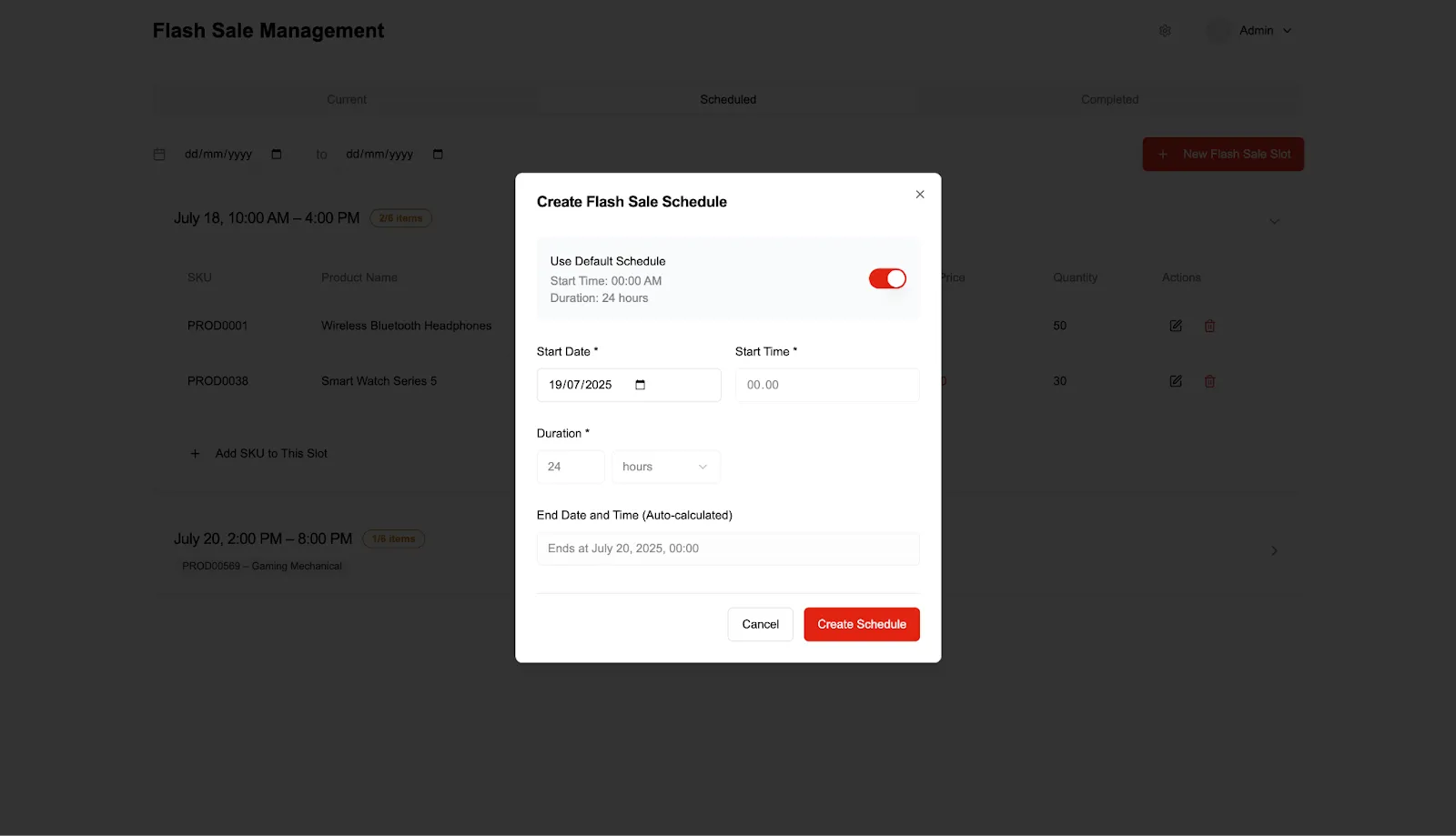
This modal is used to create a new flash sale slot. The admin can choose the start time and duration as needed, which the system will then schedule automatically.
6.6 Add SKU to Scheduled Flash Sale
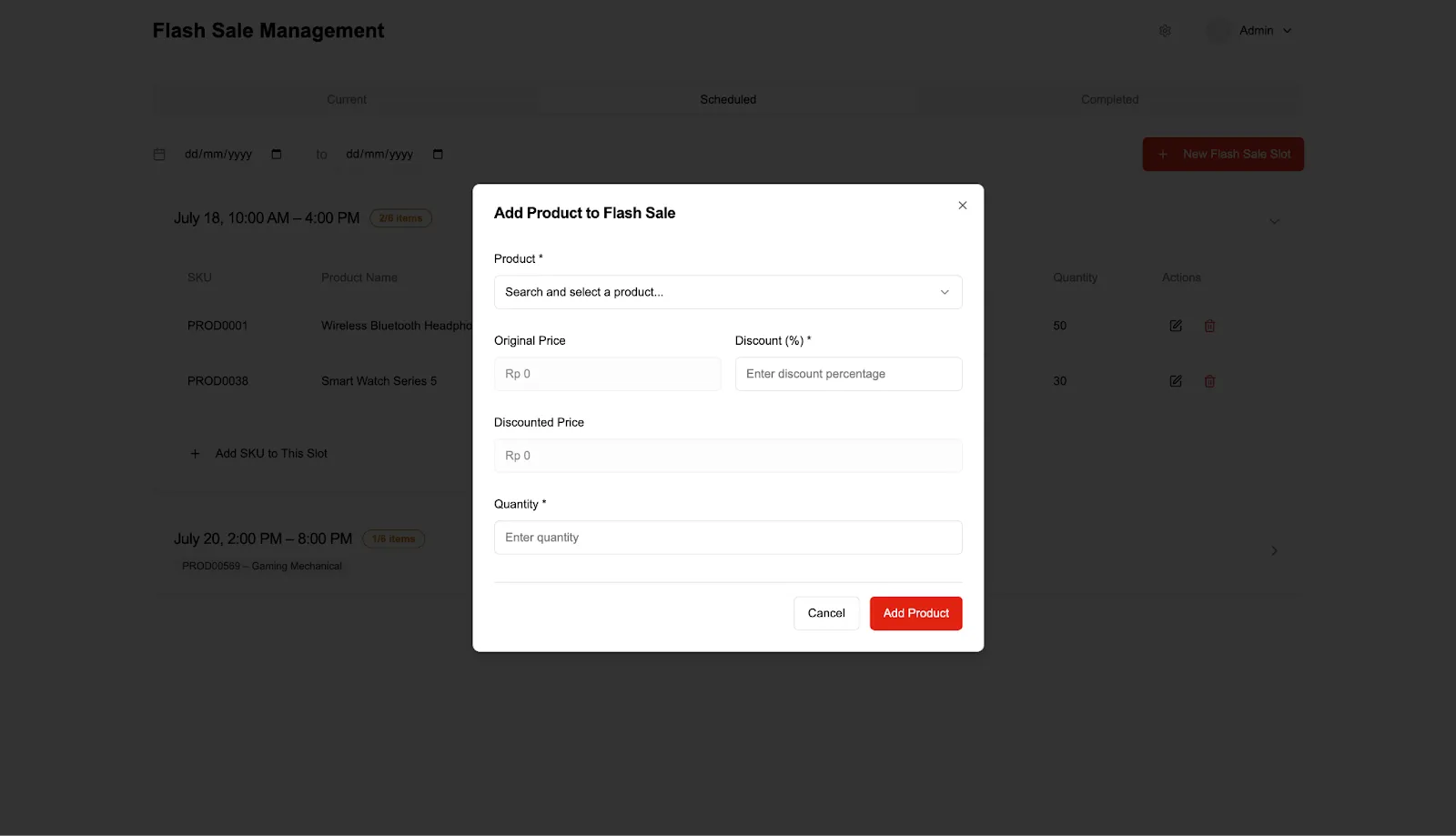
This modal is used to add a new SKU to a slot that has already been created. The admin can search for SKUs and fill in the discount and quantity, with automatic validation before adding.
6.7 Completed Flash Sale History
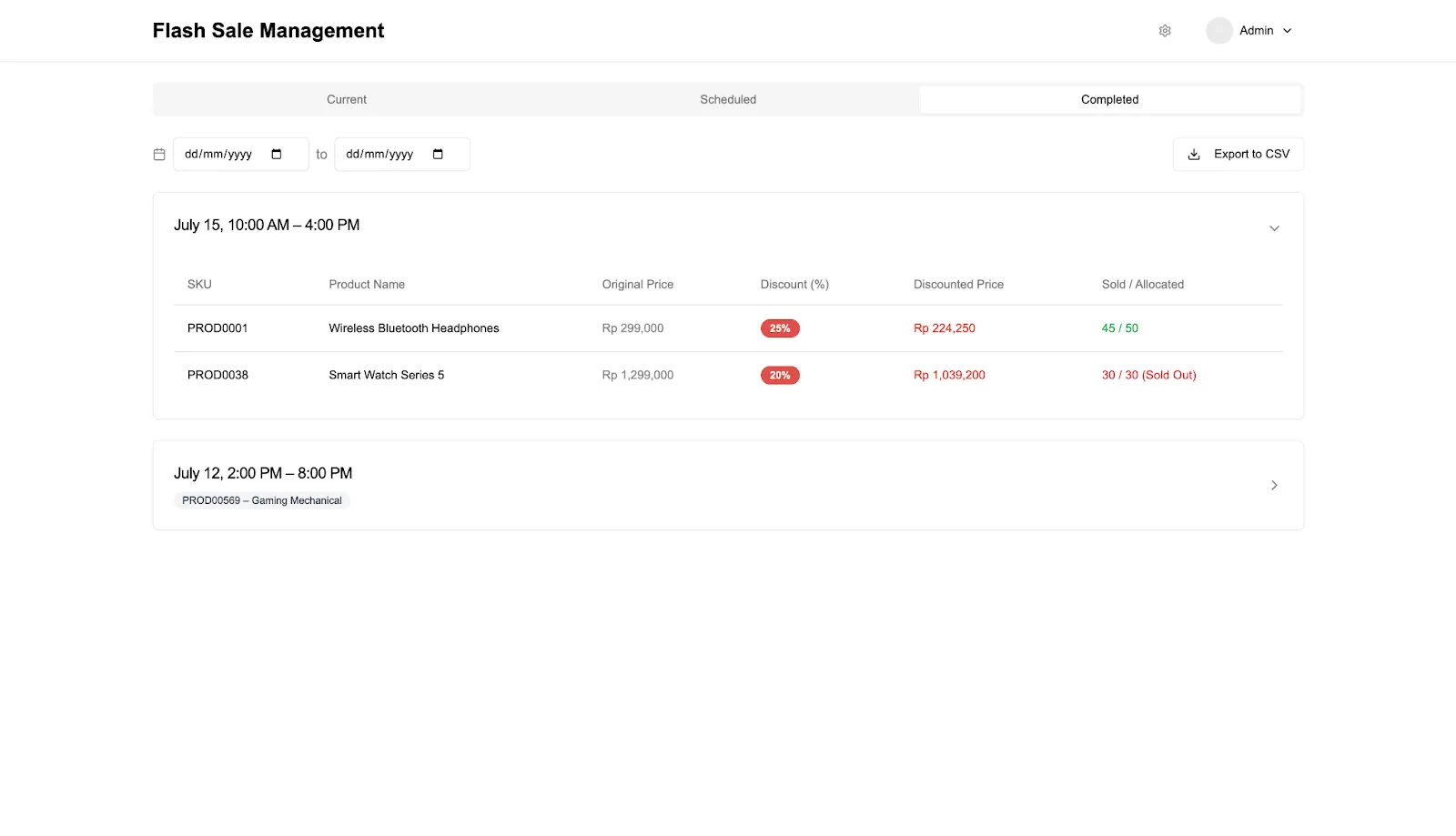
This view shows the list of flash sales that have ended. There is a feature to export data in CSV or XLSX format for a specific time range for reporting purposes.
6.8 Settings Page
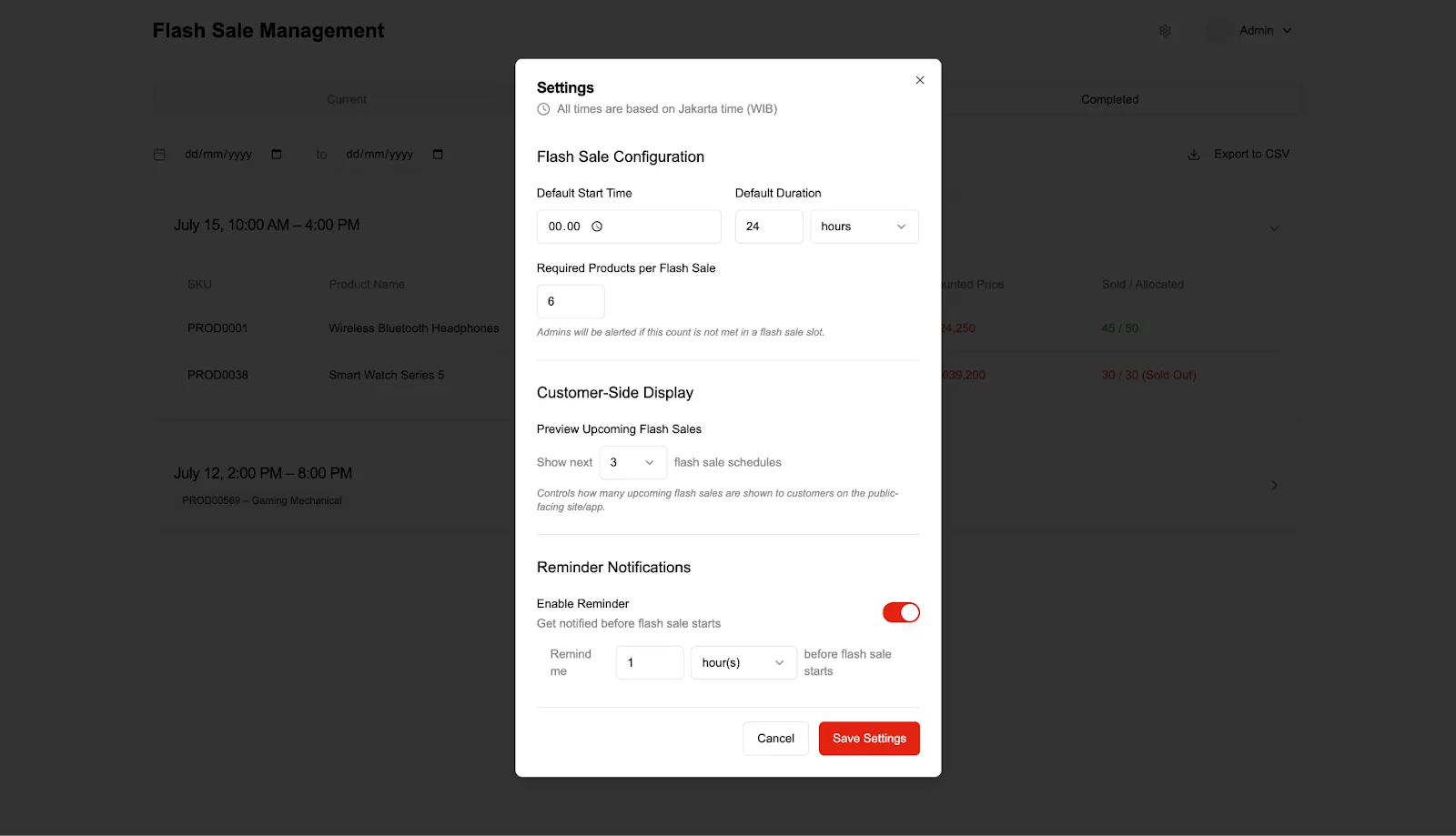
This settings page allows the admin to set the default start time, flash sale duration, minimum number of SKUs, and reminder notification preferences. All of these settings apply as defaults for creating subsequent slots.
7. Edge Cases
-
Duplicate SKU in the Same Slot
If the admin tries to add an SKU that already exists in the same flash sale slot, the system will show a warning and prevent the duplication.
-
Number of SKUs Below the Required Minimum
If the admin saves a flash sale with fewer SKUs than the minimum set in Settings, the system will show a warning label (e.g., “2/6 items”) and prevent saving if the blocking rule is enabled.
-
Deleting an SKU While the Flash Sale Is Active
If the admin deletes an SKU from the active flash sale, that SKU is immediately removed from the customer view. Products that have already been purchased are still processed. The system will record the action in the audit log and show the SKU status as “Canceled” if needed.
-
Admin Sets the Time in the Past
The system will reject the input if the flash sale start time is set in the past. A validation message is shown on the form.
-
Admin Adds a Slot That Conflicts with Another Slot
If the admin tries to schedule more than one flash sale at the same time, the system will reject the action in line with the “one active flash sale at a time” constraint.
-
Admin Edits a Slot and It Conflicts with Another Slot
If the admin changes a slot’s time and it overlaps with another slot, the system will show a warning. Full blocking or warning only will follow the previously configured setting.
-
Simultaneous Conflict from Multiple Admins
If two admins edit the same slot at the same time, the system will handle the conflict with a last-overwrite mechanism (last write wins) or show a warning depending on the setup.
-
Stock Runs Out Before the End Time
If the entire product quantity in a slot is sold before the end time, the system will automatically mark the product status as “Sold Out”.
-
Flash Sale Does Not Run Automatically
If the system fails to move the flash sale status from Scheduled to Current on time, the system will show an error notification to the admin and record it in the audit log.
-
Network Error While Saving
If the admin adds or edits a flash sale but a network error occurs, the system will show a save-failure message and ask the user to try again.
Design a flash sale management system to let marketing teams independently schedule, manage, and monitor campaigns without relying on developers.